
PTI Dealer Portal Manual
The PTI Dealer Portal (dealer.powertechna.com) is for Power Technology Inc. dealers and installers. It shows your prices and live stock status, takes order requests, checks warranty by serial number, and lists your invoices. PTI sells only to dealers and installers; end users should contact their installer.
1. Signing in
- Go to dealer.powertechna.com.
- Enter the email address PTI registered for you and your password, then click Sign in.
- First time, or forgot your password? Click Forgot password?, enter your email, and follow the link we send you to set a password.
Each company can have up to 3 sign-in emails. To add or remove a person, ask your PTI sales rep or email sales@powertechna.com.
Language. Use EN / 한국어 / Español at the top to switch the screen language.
Put it on your phone or computer. On iPhone (Safari): Share → Add to Home Screen. On Android or a computer (Chrome / Edge): menu → Install app or Add to Home screen. It opens with the PTI Dealer icon, like an app.
Your menus. You see the menus PTI turned on for your company: Order (or Products), Warranty, My orders, Invoices and Account.
2. Products and prices (Order)
The Order page lists our current products.
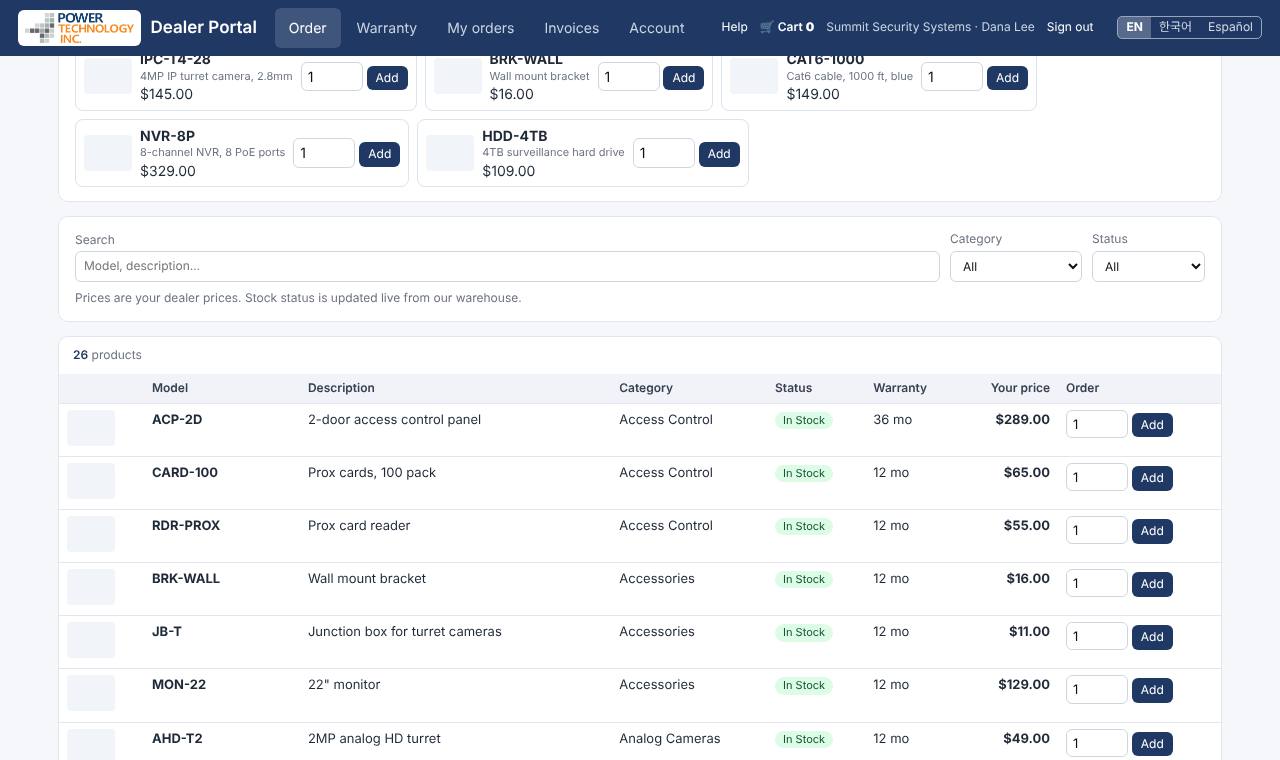
| Column | What it shows |
|---|---|
| Photo | Click it to see a larger picture |
| Model | The model number; specs ↗ opens the product page on powertechna.com |
| Status | In Stock, Low Stock, Out of Stock, Discontinued, or Discontinued – Limited Stock (with the replacement model when there is one) |
| Warranty | Warranty length in months |
| Your price | Your dealer price; special = a special price for your company (with its end date, if any) |
Find a product. Type a model or words in Search, or choose a Category or Status. Stock status is updated live from our warehouse; quantities are not shown.
Your frequently ordered products appear at the top for quick reordering.
3. Ordering
- On the Order page, enter the quantity next to a product and click Add. Change it later with Update.
- Click 🛒 Cart (top right) to review your order: change quantities or remove lines.
- Fill in Your P.O. #, Ship to (pick a saved address or Other address…), Ship via (e.g. UPS Ground, pick up) and a Note if needed. If your account covers several locations, choose the location in Order for.
- Click Send order request.
You receive an order number (for example D2600123) on screen and by email. This is an order request: we check stock, confirm it and turn it into a sales order or invoice. Nothing is charged when you send it.
- Products that are Out of Stock cannot be ordered.
- If you ask for more than we have, the cart tells you Only N available — lower the quantity, or contact us for a back order.
- Your cart is kept in this browser until you send it.
4. My orders
My orders lists your order requests, newest first, with the lines and total.
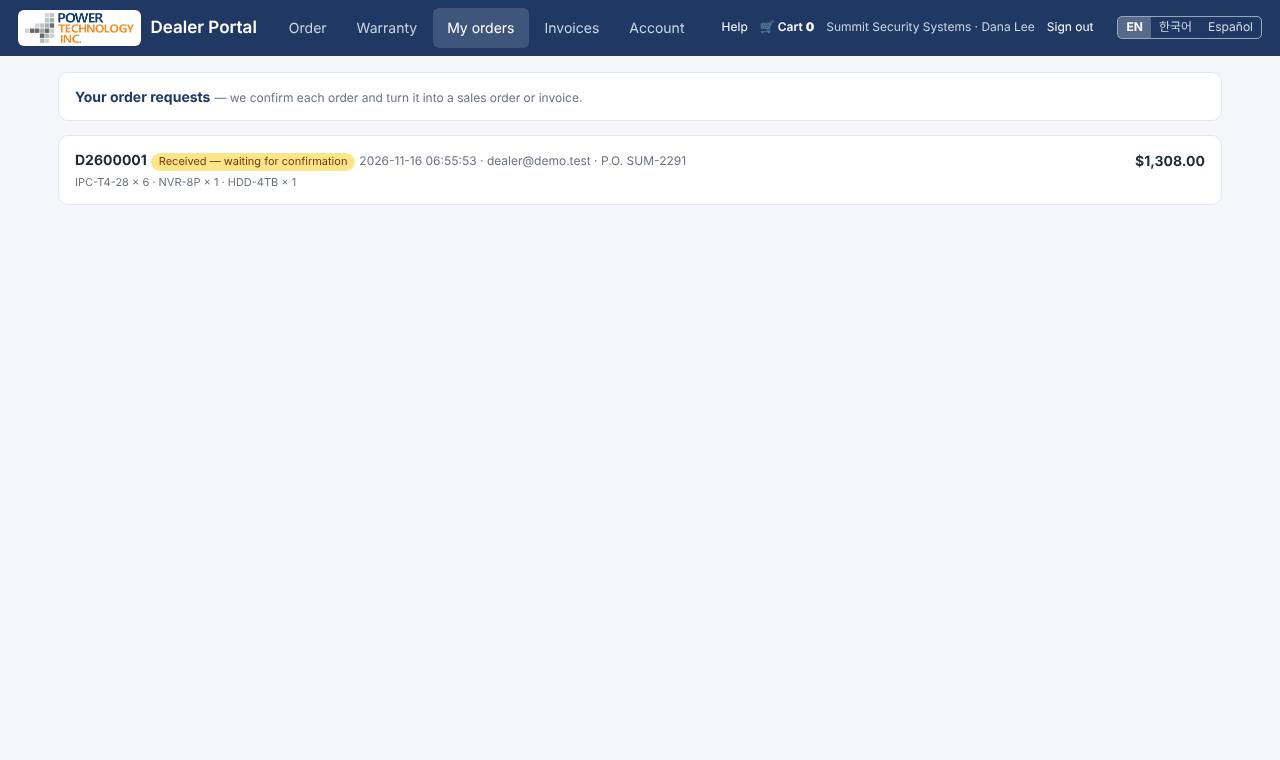
| Status | Meaning |
|---|---|
| Received — waiting for confirmation | We have it and are checking it |
| Confirmed | We made the sales order or invoice; its number is shown under the order |
| Not accepted | We could not take it; your PTI rep will contact you |
When it ships, the order shows Shipped with the tracking numbers. You also get an email when the order is confirmed and when it ships.
5. Warranty
Warranty lookup. Type or scan a serial number and click Check warranty. You see In Warranty or Out of Warranty, the model, the invoice and sale date, and the warranty end date. Only units sold to your company are shown.
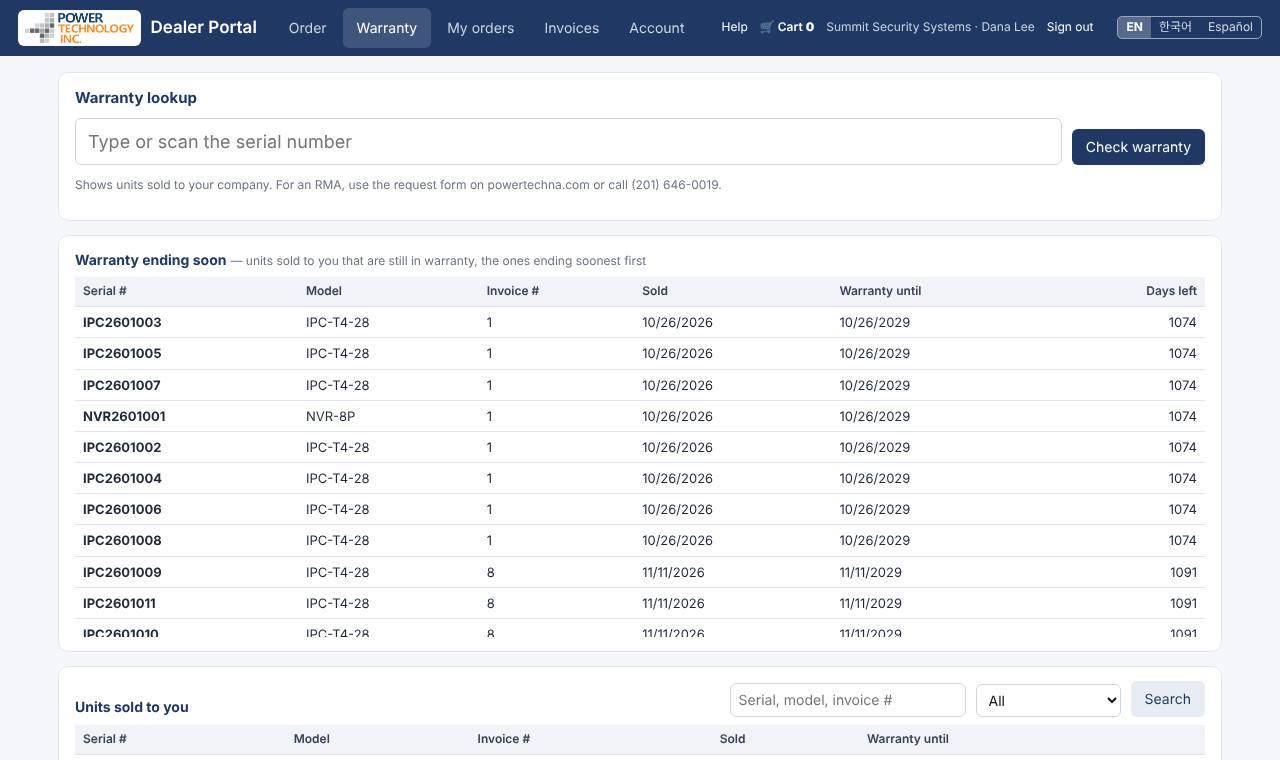
Warranty ending soon lists units sold to you that are still in warranty, the ones ending soonest first.
Units sold to you lists every serial-numbered unit we sold you. Search by serial, model or invoice #, or choose In warranty only.
To return a unit for repair (RMA), submit a request at powertechna.com/support. RMA and warranty service go through the dealer who bought the product from PTI.
6. Invoices
Invoices lists your invoices and credit memos: invoice #, date, your P.O. #, terms, due date, total, open balance and status (Open, Partial, Paid, Applied). Past-due dates show in red. Search by invoice # or your P.O. #, or filter by Status. Click an invoice to see its lines, prices and serial numbers.
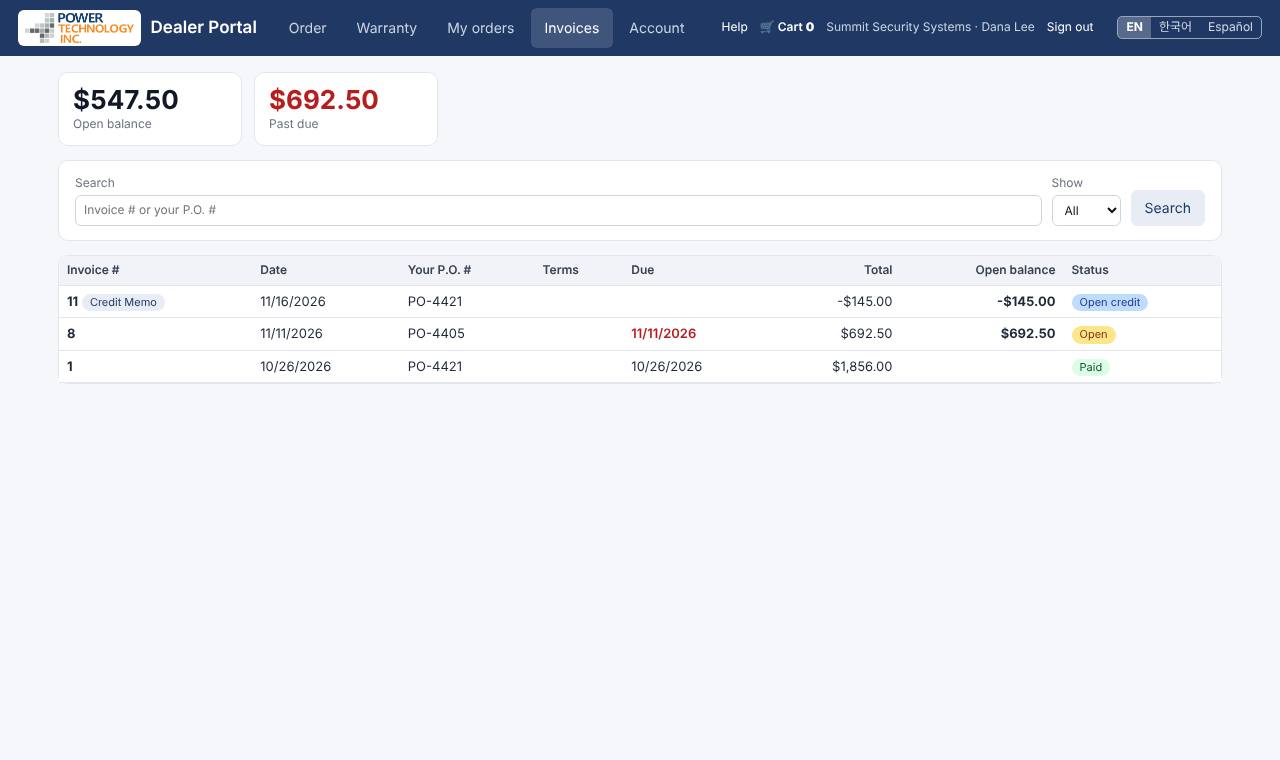
For a printed copy of an invoice or a statement, ask your PTI sales rep.
7. Account
Account shows your company and sign-in email. To change your password, enter the current password and the new one twice, then click Change password. Click Sign out when you finish on a shared computer.
Notifications. In Account → Notifications, tick Notifications on this device and choose: order confirmed, order shipped (tracking number), order not accepted, warranty ending within 30 days. Do it on each phone or computer you use; Send a test checks it. On iPhone, first add the portal to your Home Screen and open it from there.
8. Help
- Orders and prices: your PTI sales rep, or sales@powertechna.com
- Technical support and RMA: powertechna.com/support
- Phone: 201.646.0019, Monday–Friday 9 AM–5 PM Eastern (except major holidays)
Ask this manual. At the top of this page, type a question in your own words. The answer comes only from this manual, with links to the sections; it can be wrong, so check the linked section. There is a daily limit.